Translate

Mostrando entradas con la etiqueta Visual Studio. Mostrar todas las entradas

lunes, 19 de mayo de 2014

Ext.JS and Visual Studio: HTTP Error 404 file not found when loading json file

I have the following store defined, loading data from a json file:

Ext.define('Uge.store.Articles', {
    extend: 'Ext.data.Store',
    model: 'Uge.model.Article',
    proxy: {
        type: 'ajax',
        url: 'data/articles.json',
        reader: {
            type: 'json',
            root: 'articles',
            successProperty: 'success'
        }
    },
    autoLoad: true
});

Data to load is inside the file data/articles.json, but when trying to load data we get an error pointing that file could not be found.
 
To avoid this error you need to set your project to accept json file types. You can do this setting the following configuration into web.config file:


miércoles, 16 de abril de 2014

Ext.NET ComboBox samples

Combobox loading data from store which uses an SqldataSource. It shows Name field, and returns SportID field value:


The method in code behind could be as follows:

protected void Store2_ReadData(object sender, StoreReadDataEventArgs e)
{
  using (var db = new ClubSiteContext())
  {
     Store store = this.cbxDeportes.GetStore();
     store.DataSource = from s in db.Sports select new { s.SportID, s.Name };
     store.DataBind();
  }
}


In this case is important to perform an initial load for the data when the page is loaded.

Other way to load data is using a SqlDataSource like this:


Once we have data loaded into the combobox, we could select an item, or select the empty item described using the tag EmptyText as follows:

if (aRaceType.SportID == 0)
                cbxDeportes.Value = "";
            else
            {
                object SportID = aRaceType.SportID;
                cbxDeportes.Select(SportID);
            }


If we want to perform some kind of action when user selects a value from combobox we could use Direct Events an a method in code behind like this:


And this is the method implemented in code behind:

protected void cbRaceTypesChangeValue(object sender, DirectEventArgs e)
{
     txbxPoints.Text = "Escribe algo";
}


More combobox samples here  http://examples.ext.net/#/Form/ComboBox/Overview/


jueves, 3 de abril de 2014

Entity Framework, Code First and Inheritance

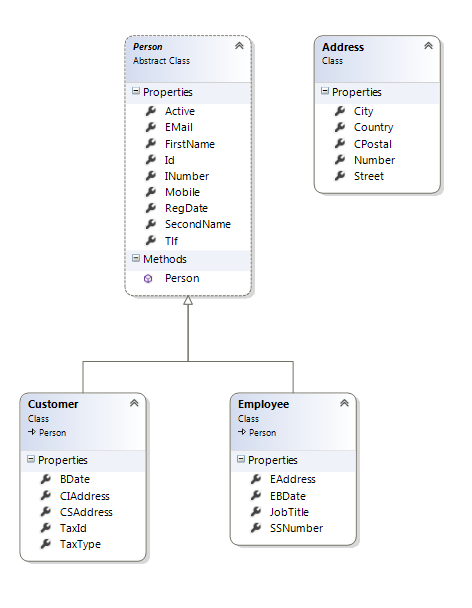
We have the following classes structure:

These are the classes code:


We are going to use the TPH (Table Per Hierarchy) way, which means we are going to have only one table for an Hierarchy. In this case we are going to have one table for both Customers and Employees.

In the Data Base Context I need to add all the classes that represent an entity, but when I´m using inheritance  and TPH, I do not need to add the classes which inherits from a main class. I´m going to add only the base class. So the Data Base Context would be as follows:


So, when EF creates the data base from the model this is the table that I´m going to have including Customer and Employees. Note that EF adds a field called Discrimator, which is a string field used by EF to discriminate to which entity does the data belong. In our case this field could contains values like "Customer" or "Employe".


But, what happen when I need to query data from this table?, well I could made queries for the parent object, person, or queries to child objects, customer or employee.

This is an example of ASP.NET Web Forms GridView component using EF and LINQ to access data for Employees:

The GridView in a browser showing data for employees


The aspx code for the GridView

The code for the GridView´s SelecMethod 
Note that we can query for a child object, but in this case we need to use OfType to indicate EF to retrieve only the data from the People table belonging to the Employee Entity.

domingo, 30 de marzo de 2014

jQuery Date Picker en español en ASP.NET MVC


Esta seria la configuración del componente datePicker para que aparezca en Español, permita escoger mes y año y con animación de scroll hacia abajo.


Esta sería la forma de usarlo en ASP.NET  MVC asociando el resultado a un campo de una tabla, y asignando dicho campo para que al editar muestre la fecha guardada.

Ojo que el dato devuelto por el datePicker es DateTime2, y no olvidar incluir en el view referencia al fichero del script definido anteriormente. A modo de ejemplo, esto sería el código de un view que usa el datePicker

jueves, 27 de marzo de 2014

ASP:NET MVC More than one model in the same view

In this case I have two models that I need to pass to the view because I need data from both classes. The first one is associated to the class UserProfile which manages the userName, userID, email, and all the data for a given user:


The second model manages the passwords for the user name. These data are stored encrypted  into a different file in order to prevent access to see the password. Both classes have Data Annotations to describe label fields,keys, required data, etc. In this link you could find info about regular expressions to validate data entered in data fields.


In my example I need  to use data from both classes(models) when a new user is being registered, that is, enter username, password and all the other data, so I need to pass both models to the same view, in which data could be entered. This is the code for the view, using data from both models:


An this is how this view is showed in the browser:


MVC allows you to pass only one model to a View, but you can use different ways to pass more than one. The way I do it, is using an auxiliary class in which you can put all the models you want to pass to the view. So this is the additional class including the two classes mentioned above:


And this is the method associated with the view, saving data for both models:


viernes, 21 de febrero de 2014

WPF Grid Rounded Corners, shadows, and button gradient effect


A few effect examples in Windows Presentation Foundation Applications:

  • Grid with Rounded corners and a shadow effect.
  • Data Grid with rounded corners.
  • Buttons with a gradient color.


This is the code for the XAML.


martes, 4 de febrero de 2014

DropDownList: Select an Item using code

Suppose we have two fields, the first one a Text Box showing an ID and a the second one a DropDownList with the name associated to this ID.


If you want the dropdownlist to change its value when the Text Box change his value also, you could do it in an programatically way 

             ListItem aValue = ddlDeportes.Items.FindByValue(txbxDeporte.Text);
            ddlDeportes.SelectedIndex = ddlDeportes.Items.IndexOf(aValue);


It´s important to configure the dropdownlistconnecting the value Field to the ID, and the text field to the name which is showed by the dropdownlist.
In the first line we search into the dropdownlist using the value showed in the text box. Then we obtain a ListItem object containing the object to be selected into the dropdownlist. Finally using IndexOf we select this item in the dropdownlist

On the other way, if you want to change the value in the TextBox when you select a value from the dropdownlist then, you have to use the event OnSelectedIndexChanged for the dropdownlist, and use the following code.

          txbxDeporte.Text = Convert.ToString(ddlDeportes.SelectedValue); 

Is important also to enable the AutoPostBack property for the dropdownlist. Then the mark-up code for this component would be as follows:


ddlDeportes_GetData would be the method used to populate the dropdownlist using LINQ to get the data:

public IQueryable ddlDeportes_GetData()
        {
            var db = new ClubSiteContext();
            IQueryable query = from sports in db.Sports
                                      orderby sports.Name
                                      select sports;
            return query;
        }


sábado, 1 de febrero de 2014

How to seed data in a "manual mode" way into an Entity Framework Code First data base

First of all, you need to enable automatic migrations: go to Tools, Library Package Manager and finally to Package Manager Console.

Execute the command: Enable-Migrations. A new class called Configuration appears under a new folder called Migrations. Go to this class and use the following code as an example to seed two tables called Sport and RaceType:


The first method, Seed which is overrided to use our own seed actions includes a call to an SQL Command, in order to delete the tables, and initialize the index counters. Following to a call to the method  GetSports, which obtains data from the Sports List created bellow. For each element on this list we call the Add method.

To manually launch this seed you only need to use the command Update-Database in the previous shell.


jueves, 23 de enero de 2014

C# and MultiThreading

This is an example of how to implement multi-threading using .Net and C#. This application launches a method called DoWork in two different threads. This would cause that we are not going to have a established order. They could do in an apparently random way.

The method uses a While do loop to add a number to a ListBox. Thread 1 (th1) uses ListBox1 (left one), and thread 2 uses the other one. So if I launch the application and click over start both threads start to works sending numbers to its correspondent listbox. When finished I could try to click again and again, and the result would be different each time:


This is the code for the button START which will create and launch both Threads. I have used for this parametrized Threads because I need it to indicate over with listBox must the thread works


This is the code for the job assigned to the threads.


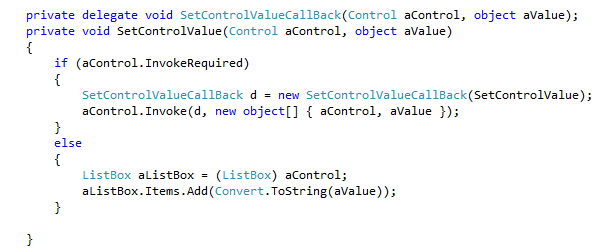
One important thing is that we cannot access the control directly because we are working with different threads, if I try to add the item to the list box in a different thread I would obtain a exception, so I need to create a delegate SetControlValueCallBack "pointing" to a method SetControlValue, to identify if this call came from a thread different from the thread in which was created the control. This is accomplished using the InvokeRequired.


In this case the method creates a new delegate type object, passing also the arguments received. This causes to call again the method, but this times using the same Thread, which causes to entry in the code that adds the value to the listbox without having an exception. 


lunes, 13 de enero de 2014

ASP.NET/Ajax ToolKit: SlideShowExtender en Master Pages


You can use the Ajax Toolkit component to create an image slider. It´s a very easy component to use. You only need an image, an a SlideShowExtender pointing to this image. Also you will need a method in the code behind of the page to load the images into the slider.

If you try to do this into a master page then you need to create a Web Service to store the method needed to load the images.

This is the code into the markup to create the slider. This page is a master page called Site.Master


and this is the code for the web service, including a method called GetSlides to load the slides into the Slider component:

jueves, 9 de enero de 2014

ASP.NET: Server Side vs Client Side

This is en example showing how to call a javascript piece of code at the client side, and the equivalent in the server side, but this time using the code behind of the page in C#:

The example consists on a web form in which you have to provide a name using a text box, choose a date using a calendar component, and finally select a flight company using a dropdown list component.

Clicking over the Alert button the forms will show two messages indicating the name, date and flight company, using client side and server side.


Once we have enter the name and choosed the date and flight company we obtained two messages, the first one produced by the client side :


And the second one produced from the server side just at the top of the page:


This is the markup for the web form showing the javascript code for the client side, and the button used to calls the client side method "sayMessage()" defined in the javascript, and the method "Button3_Click" for the server side defined in the code behind file.


This is the code behind implementing the Button3_Click method:


martes, 24 de diciembre de 2013

ASP.Net Entity Framework Add, Insert, Edit, Delete and Select


Here you can see how to work with ADO.NET Entity Framework and hand-coded access to data.

This code is implemented in the code-behind of the page, and associated to the buttons added to create a new element, edit n existing, save, cancel and delete.

For simplicity I am supposing that data entered in text boxes is correct, otherwise you can control using validation controls associated to the text boxes.

Saving a New or Edited existing: (Associated to Save Button)

         using (TheClubBDEntities myEntities = new TheClubBDEntities())
        {
            RaceType aRaceType;
            if (_Id == -1) //Save new
            {
                aRaceType = new RaceType();
                myEntities.RaceTypes.AddObject(aRaceType);
            }
            else
            { //Update existing
                aRaceType = (from r in myEntities.RaceTypes
                                       where r.Id == _Id
                                       select r).Single();             
            }
            aRaceType.Name = txbxNombre.Text;
            aRaceType.PuntosPart = Int32.Parse(txbxPuntos.Text);
            aRaceType.Memo = txbxMemo.Text;
            LastPos = _Id;  // Used to control position in the data base.
            myEntities.SaveChanges();

            GridView1.DataBind();  // To refresh data into GridView

            setNormalMode();  //Disable save button and put textboxes in readonly mode.
        }

Deleting existing:

        using (TheClubBDEntities myEntities = new TheClubBDEntities())
        {
            var aRaceType = (from r in myEntities.RaceTypes
                             where r.Id == _Id
                             select r).Single();


            myEntities.RaceTypes.DeleteObject(aRaceType);
            myEntities.SaveChanges();
        }
        GridView1.DataBind();
        setNormalMode();

Cancel editing or adding a new:

        using (TheClubBDEntities myEnt = new TheClubBDEntities())
        {
            var aRaceType = (from rt in myEnt.RaceTypes
                                         orderby rt.Name ascending
                                        where rt.Id == LastPos
                                        select rt).SingleOrDefault();

            if (aRaceType == null)
            {
                _Id = -1;
                LastPos = -1;
            }
            else
            {
                _Id = aRaceType.Id;
                txbxNombre.Text = aRaceType.Name;
                txbxPuntos.Text = aRaceType.PuntosPart.ToString();
                txbxMemo.Text = aRaceType.Memo;
            }
            setNormalMode();
        }

Selecting from the GridView and putting data into textboxes:

        _Id = Int32.Parse(GridView1.SelectedRow.Cells[1].Text);
        LastPos = _Id;
        txbxNombre.Text = GridView1.SelectedRow.Cells[2].Text;
        txbxPuntos.Text = GridView1.SelectedRow.Cells[3].Text;
        txbxMemo.Text = GridView1.SelectedRow.Cells[4].Text;
        setNormalMode();

Moving to first:

        using (TheClubBDEntities myEnt = new TheClubBDEntities())
        {

            var aRaceType = (from rt in myEnt.RaceTypes
                                         orderby rt.Name ascending
                                         select rt).FirstOrDefault();

            if (aRaceType == null)
                _Id = -1;
            else
            {               
                _Id = aRaceType.Id;
                LastPos = _Id;
                txbxNombre.Text = aRaceType.Name;
                txbxPuntos.Text = aRaceType.PuntosPart.ToString();
                txbxMemo.Text = aRaceType.Memo;
            }
        }

Loading the page:

        using (TheClubBDEntities myEnt = new TheClubBDEntities())
        {
            if (!Page.IsPostBack)
            {
                var aRaceType = (from rt in myEnt.RaceTypes
                                             select rt).FirstOrDefault();

                if (aRaceType == null)
                {
                    _Id = -1;
                    LastPos = -1;
                }
                else
                {
                    _Id = aRaceType.Id;
                    LastPos = _Id;
                    txbxNombre.Text = aRaceType.Name;
                    txbxPuntos.Text = aRaceType.PuntosPart.ToString();
                    txbxMemo.Text = aRaceType.Memo;
                }
            }
        }


martes, 10 de diciembre de 2013

ASP.Net: Validation

There are six components in Visual Studio you can use for user validation:

This first four are used to validate data in the client side:

  • RequiredFieldValidator: verify if any given field is present or not.
  • Rangevalidator: verify if data is between a given range.
  • RegularExpressionValidator: verify data from a mask string, for example, to verify if a strinf is a correct email.
  • Comparevalidator: used to compares two fields.
The last two are valids also to validate data in the server side in adittion to client side, which is more important, because users can disable javascript in their browsers disabling then the client side validation. So is important not to rely only in client side validation adding also server side validation.


  • CustomValidator: enables to write javaScript code associated to a validation action over a component.
  • ValidationSummary: show the errors that validator component raises.

This could be an example of a form showing a form to leave a commet in our site:


Here we have a few text boxes for we can add validator. For example, for the first one, then text box for the name I had added a RequiredFieldValidator, to avoid a missing name. The most important properties you must set for this control are:


  • ControlToValidate: The name of the control you are going to validate , the name of the text box.
  • CssClass: Class on the CSS file that define for example the color of the text when an error raises.
  • ErrorMessage: The string that shows the error.


For the second one I have added to Validation controls, a RequiredFieldValidator, configured similarliy to previous one, and also a RegularExpressionValidator. For this one is important to set the property ValidationExpression choosing between the different Expressions Visual Studio offers. In this case email expression.


For the third one, I have added another two control validations, a RequireFieldValidator, an also a CompareValidator, to compare if both eMails are equal.


For the last field, the comment I have added only a RequireFieldValidator.

And finally at the end of the form I have added a ValidationSummary  to shows all the errors made by the users during the form filling:


I have added also a CustomValidator for the telephone number, which calls a javaScript function used to verify that the telephone numer is not missing. is the same task as a RequireFieldValidator, but this time this validation is on the server side. For this you have to write a javaScript function, for the client Side, an also a C# function for the server Side. The first one is implemented in the same html file, while the C# code is implemented in the code behind file associated to the form, and into the Server_Validate event.

This is the code into the HTML with the CustomValidator, which references the two functions needed, validatePhoneNumber and CustomValidator1_ServerValidate:


This is the code also into the HTML with the javaScript function validatePhoneNumber:


This is the code behind with the function CustomValidator1_ServerValidate:


This is an example of the form showing a few errors: