Translate

Mostrando entradas con la etiqueta Entity Framework. Mostrar todas las entradas

jueves, 3 de abril de 2014

Entity Framework, Code First and Inheritance

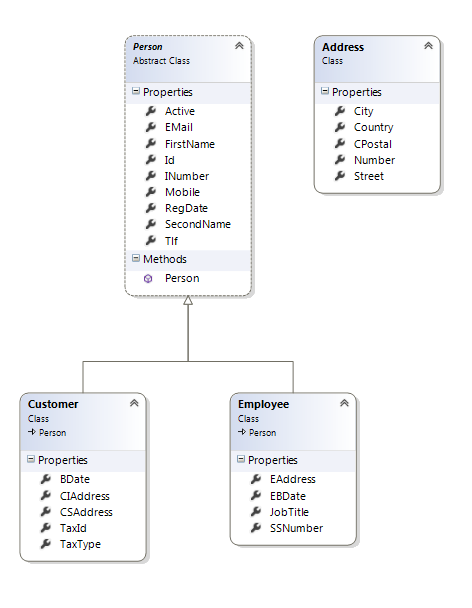
We have the following classes structure:

These are the classes code:


We are going to use the TPH (Table Per Hierarchy) way, which means we are going to have only one table for an Hierarchy. In this case we are going to have one table for both Customers and Employees.

In the Data Base Context I need to add all the classes that represent an entity, but when I´m using inheritance  and TPH, I do not need to add the classes which inherits from a main class. I´m going to add only the base class. So the Data Base Context would be as follows:


So, when EF creates the data base from the model this is the table that I´m going to have including Customer and Employees. Note that EF adds a field called Discrimator, which is a string field used by EF to discriminate to which entity does the data belong. In our case this field could contains values like "Customer" or "Employe".


But, what happen when I need to query data from this table?, well I could made queries for the parent object, person, or queries to child objects, customer or employee.

This is an example of ASP.NET Web Forms GridView component using EF and LINQ to access data for Employees:

The GridView in a browser showing data for employees


The aspx code for the GridView

The code for the GridView´s SelecMethod 
Note that we can query for a child object, but in this case we need to use OfType to indicate EF to retrieve only the data from the People table belonging to the Employee Entity.

jueves, 27 de marzo de 2014

ASP:NET MVC More than one model in the same view

In this case I have two models that I need to pass to the view because I need data from both classes. The first one is associated to the class UserProfile which manages the userName, userID, email, and all the data for a given user:


The second model manages the passwords for the user name. These data are stored encrypted  into a different file in order to prevent access to see the password. Both classes have Data Annotations to describe label fields,keys, required data, etc. In this link you could find info about regular expressions to validate data entered in data fields.


In my example I need  to use data from both classes(models) when a new user is being registered, that is, enter username, password and all the other data, so I need to pass both models to the same view, in which data could be entered. This is the code for the view, using data from both models:


An this is how this view is showed in the browser:


MVC allows you to pass only one model to a View, but you can use different ways to pass more than one. The way I do it, is using an auxiliary class in which you can put all the models you want to pass to the view. So this is the additional class including the two classes mentioned above:


And this is the method associated with the view, saving data for both models:


jueves, 27 de febrero de 2014

ASP.NET: Populating DropdownList with data from two tables using Entity Framework

This time we are going to populate a DropdownList with data from two differents tables. The tables were implemented using  Entity Framework code first. Those are the tables from which we are going to extract the data. We need the Id and the Name from the RaceTypes table, and the name from the Sports Tables.


This is the DropdownList showing the Name from the Sports, and the Name from the RaceTypes. Once you select a value from the DropDownList it would return the correspondet Id from the RaceTypes.
 

This is the code for the DropDownList. We use the field SelectMethod to indicate wich method are we going to use to populate data, DataTextField to indicate which data are we going to show, and DataValueField to indicate wich value return.


And this is the code behind with the method used to retrieve data.


sábado, 1 de febrero de 2014

How to seed data in a "manual mode" way into an Entity Framework Code First data base

First of all, you need to enable automatic migrations: go to Tools, Library Package Manager and finally to Package Manager Console.

Execute the command: Enable-Migrations. A new class called Configuration appears under a new folder called Migrations. Go to this class and use the following code as an example to seed two tables called Sport and RaceType:


The first method, Seed which is overrided to use our own seed actions includes a call to an SQL Command, in order to delete the tables, and initialize the index counters. Following to a call to the method  GetSports, which obtains data from the Sports List created bellow. For each element on this list we call the Add method.

To manually launch this seed you only need to use the command Update-Database in the previous shell.


martes, 24 de diciembre de 2013

ASP.Net Entity Framework Add, Insert, Edit, Delete and Select


Here you can see how to work with ADO.NET Entity Framework and hand-coded access to data.

This code is implemented in the code-behind of the page, and associated to the buttons added to create a new element, edit n existing, save, cancel and delete.

For simplicity I am supposing that data entered in text boxes is correct, otherwise you can control using validation controls associated to the text boxes.

Saving a New or Edited existing: (Associated to Save Button)

         using (TheClubBDEntities myEntities = new TheClubBDEntities())
        {
            RaceType aRaceType;
            if (_Id == -1) //Save new
            {
                aRaceType = new RaceType();
                myEntities.RaceTypes.AddObject(aRaceType);
            }
            else
            { //Update existing
                aRaceType = (from r in myEntities.RaceTypes
                                       where r.Id == _Id
                                       select r).Single();             
            }
            aRaceType.Name = txbxNombre.Text;
            aRaceType.PuntosPart = Int32.Parse(txbxPuntos.Text);
            aRaceType.Memo = txbxMemo.Text;
            LastPos = _Id;  // Used to control position in the data base.
            myEntities.SaveChanges();

            GridView1.DataBind();  // To refresh data into GridView

            setNormalMode();  //Disable save button and put textboxes in readonly mode.
        }

Deleting existing:

        using (TheClubBDEntities myEntities = new TheClubBDEntities())
        {
            var aRaceType = (from r in myEntities.RaceTypes
                             where r.Id == _Id
                             select r).Single();


            myEntities.RaceTypes.DeleteObject(aRaceType);
            myEntities.SaveChanges();
        }
        GridView1.DataBind();
        setNormalMode();

Cancel editing or adding a new:

        using (TheClubBDEntities myEnt = new TheClubBDEntities())
        {
            var aRaceType = (from rt in myEnt.RaceTypes
                                         orderby rt.Name ascending
                                        where rt.Id == LastPos
                                        select rt).SingleOrDefault();

            if (aRaceType == null)
            {
                _Id = -1;
                LastPos = -1;
            }
            else
            {
                _Id = aRaceType.Id;
                txbxNombre.Text = aRaceType.Name;
                txbxPuntos.Text = aRaceType.PuntosPart.ToString();
                txbxMemo.Text = aRaceType.Memo;
            }
            setNormalMode();
        }

Selecting from the GridView and putting data into textboxes:

        _Id = Int32.Parse(GridView1.SelectedRow.Cells[1].Text);
        LastPos = _Id;
        txbxNombre.Text = GridView1.SelectedRow.Cells[2].Text;
        txbxPuntos.Text = GridView1.SelectedRow.Cells[3].Text;
        txbxMemo.Text = GridView1.SelectedRow.Cells[4].Text;
        setNormalMode();

Moving to first:

        using (TheClubBDEntities myEnt = new TheClubBDEntities())
        {

            var aRaceType = (from rt in myEnt.RaceTypes
                                         orderby rt.Name ascending
                                         select rt).FirstOrDefault();

            if (aRaceType == null)
                _Id = -1;
            else
            {               
                _Id = aRaceType.Id;
                LastPos = _Id;
                txbxNombre.Text = aRaceType.Name;
                txbxPuntos.Text = aRaceType.PuntosPart.ToString();
                txbxMemo.Text = aRaceType.Memo;
            }
        }

Loading the page:

        using (TheClubBDEntities myEnt = new TheClubBDEntities())
        {
            if (!Page.IsPostBack)
            {
                var aRaceType = (from rt in myEnt.RaceTypes
                                             select rt).FirstOrDefault();

                if (aRaceType == null)
                {
                    _Id = -1;
                    LastPos = -1;
                }
                else
                {
                    _Id = aRaceType.Id;
                    LastPos = _Id;
                    txbxNombre.Text = aRaceType.Name;
                    txbxPuntos.Text = aRaceType.PuntosPart.ToString();
                    txbxMemo.Text = aRaceType.Memo;
                }
            }
        }